
Step-by-Step Setup Guide for Any Device
Our IPTV services are compatible with a wide variety of devices. If your device isn’t listed, don’t worry we support all devices and apps.
Simply reach out to us, and we’ll be happy to assist you!


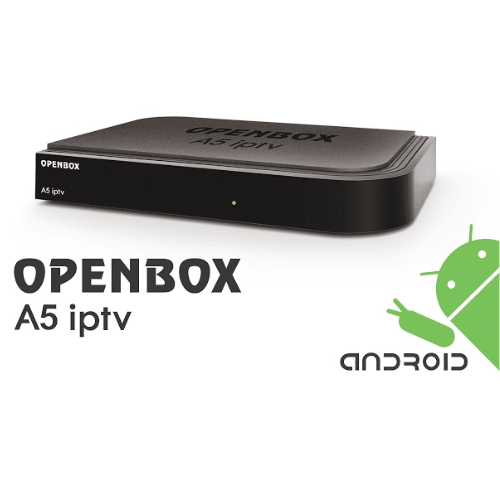

Instructions for setting up IPTV on your PC/Windows
Download the application on your PC or Laptop.
Once the IPTV app is installed on your device, then you need to open it in order to log in.
Next up, you’ve to fill the form with the login credentials provided in your client-area, i.e., Name, Username, and Password.
After you’re logged in to your account, wait for the channels to load, and then you’re good to have one of the best entertainment sessions.
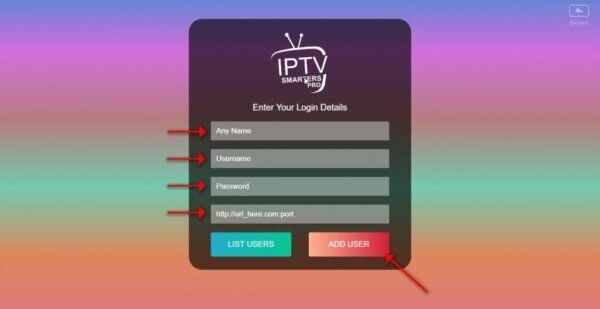
After you’re logged in to your account, wait for the channels to load, and then you’re good to have one of the best entertainment sessions.
Instructions for setting up IPTV on Avov Box/ Formuler
This setup is done with the aid of a free media-controlled app known as ‘TVOnline.’ TVOnline setup instructions are as follows:
- On your home screen, you’ve to click on ‘Market.’
- Click on the ‘TVOnline’ app.
- Then you’re required to install the ‘TVOnline’ application.
- Send us the mac address starting at 00:1a:79:… located at the top-right side of the screen.
- Afterwards, you’ve to add ‘Server name’ & ‘Portal link.’ The portal link will be provided in your client are
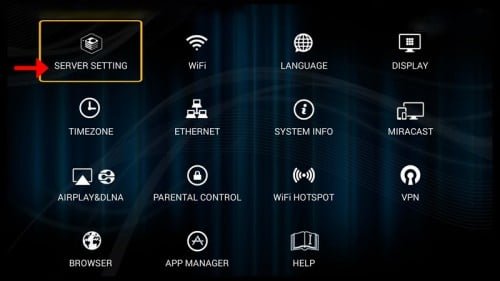
Lastly, you’ve to click on ‘connect’ and can start enjoying our playlist.
Note that if you face any problem in viewing channels, it is advised that you restart your App, Avov Box/Formuler & Wi-Fi router. Furthermore, If AVOV TV online™ does not work, please install and try AVOV “web” app on the market.
Instructions for setting up IPTV on Openbox
Firstly you’ll have to learn about the method for setting up Openbox. Follow the steps below:
- You need to open your ‘Internet Browser.’
- Copy your M3U URL and paste it at the ‘Address bar. When done, press ‘enter.’
- Two options will appear in front of you, ‘save’ or ‘save as.
- You’ll need to choose ‘save as’ and change the name to ‘IPTV.’
- When saved, copy the file into a USB and then stick it in a port at the back of the Openbox.
On the remote, you’ll need to press the following things:
- Look up Network Local Settings.
- Choose IPTV as the network app.
- Press the yellow button allowing it to read from the USB.
- You’re good to go as the Openbox shows’ success.’
If you face problems in watching the channels, it is recommended that you restart your Openbox and Wi-FiWi-Fi router in order to fix the problem.
Instructions for setting up Dreamlink T1/ T1+/ T2/ T6
Firstly, you’ll need to obtain the MAC Address from the device. This can be done by following the steps shown below:
- Start by letting the STB boot up.
- Make sure there’s no update pending to be done.
- After it boots up, it’ll bring you to the ‘Server menu.’
- Press the ‘Exit button on your remote control and then choose ‘OK.’
- This will bring you to the main DOL screen, where you’ll find the MAC Address in the upper right corner.
After obtaining the MAC Address, follow the following steps in order to set up your Dreamlink T1, T1+, T2, and T6:
- Open settings in DOL (Dreamlink On-Line).
- To pull up the ‘edit’ option, you’ve to press the ‘green’ button that can be seen on your remote control.
- Afterwards, you’re asked to fill in your ‘Portal name.’
- Add your ‘Portal URL’ (provided in your client-area). As you enter the URL, you receive an activation email from us.
- You’re required to confirm it, restart ‘Dreamlink,’ and you’re good to watch our playlist.
If you face any hurdles in watching the live channels, try restarting your Dreamlink and Wi-Fi Router.
Instructions for setting up IPTV on KODI Version 16 & Lower
- Launch Kodi app
- In the left menu click on TV
- Click on Add-on browser.
- Click on PVR IPTV Simple Client
- Click on Configure
- Select General
- Enter the IPTV subscription URL.
- Wait for some time until you get the notifications loaded.

Instructions for setting up IPTV on LG Smart TV
Step 1: Turn on your LG Smart TV and press the Home button to launch the LG Content Store.
Step 2: Search for “IPTV Smarters Pro”.
Step 3: Select and install the app.
Step 4: Launch the app and enter your IPTV subscription details.
Step 5: Allow the app to verify details and connect to the servers. You can then explore live TV channels, movies, and other on-demand libraries.

Instructions for setting up IPTV on you MAC OS X
Download IPTV Smarters Pro app through this URL : https://www.iptvsmarters.com/download?download=mac
Launch the application.
Fill up the login details which are required; Username, Password and URL (provided in your client-area).
Lastly, wait till all the channels load and you’re good to watch your Ottaiptv playlist.
Instructions for setting up IPTV on all MAG Models
You’ve to make sure that MAG DEVICE is connected to the TV and has access to the internet connection. Next up, you’ve to follow the following steps after providing us with your mac address:
Open Settings: Navigate to the System Settings on your MAG device and choose Servers > Portals.
Set Portal 1 URL: The URL will be provided to you via email or WhatsApp. Enter the URL exactly as provided.
Set Portal 2 (Optional):
Portal 2 Name: Leave this blank unless you wish to buy a second subscription.
Portal 2 URL: Leave this blank if you do not require a second subscription.
Save the Settings: After entering the details, ensure everything is saved.
Reboot Your Device: Restart your MAG device.
Wait for Channels to Load: Once the device restarts, wait a few moments for the TV screen to display the available channels.
Instructions for setting up IPTV on Android Smartphones/Android Device
In this case, we have narrowed the installation process to just four simple steps for the ease of our customers.
Open your play store, and type “IPTV Smarters” also named “Smarter player”
As the application gets installed on your device, choose “Xtream Codes API” if you find the option for better streaming and EPG
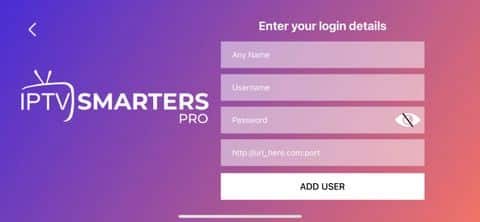
You’re required to provide the login information, including; Name, Username, Password, and URL (provided in your client-area).
After that, press login and you will have access to the IPTV playlist.
If you can’t install IPTV Smarters, or the app doesn’t provide the EPG, we recommend using another application named “IPTV Streamer”.
– Using Downloader or a Browser –
Step one involves opening a Downloader or a browser “Internet”, whichever option is convenient for you.
Afterwards, enter the following URL as shown and press Ok: https://www.iptvsmarters.com/smarters.apk
Lastly, when the installation gets complete, please provide your login details, including; Username, Password, and URL to enjoy our service.
Instructions for setting up IPTV on Samsung TV
Step 1: Turn on your Samsung Smart TV and press the Smart Hub button on your remote.
Step 2: Use the search function to find “IPTV Smarters Pro”.
Step 3: Select the app and choose to install it.
Step 4: Once installed, open the app and accept the end-user licensing terms.
Step 5: Enter the IPTV subscription credentials provided by your IPTV service (e.g., server URL, username, password).
Step 6: The app will establish a connection, and you’ll be able to browse and play live channels and on-demand content.

Instructions for setting up IPTV on Apple Tv/Iphone
Step 1: Start by downloading Smarters Player Lite app from the Apple Store through this URL : https://apps.apple.com/in/app/smarters-player-lite/id1628995509
or you can search for it on App store
install the app on your IOS device.
Step 2: Open the app once downloaded and choose login with Xtream code.
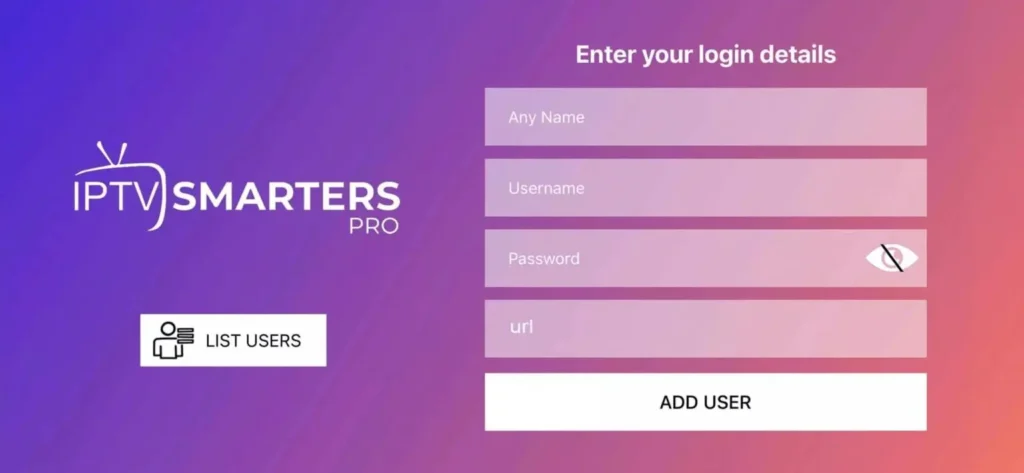
Step 3: Enter the login details that we sent you by WhatsApp or Email.
Now Click on “ADD USER” to proceed to the next section.
Step 4: Wait some seconds.
Step 5: Now click on “Live TV”
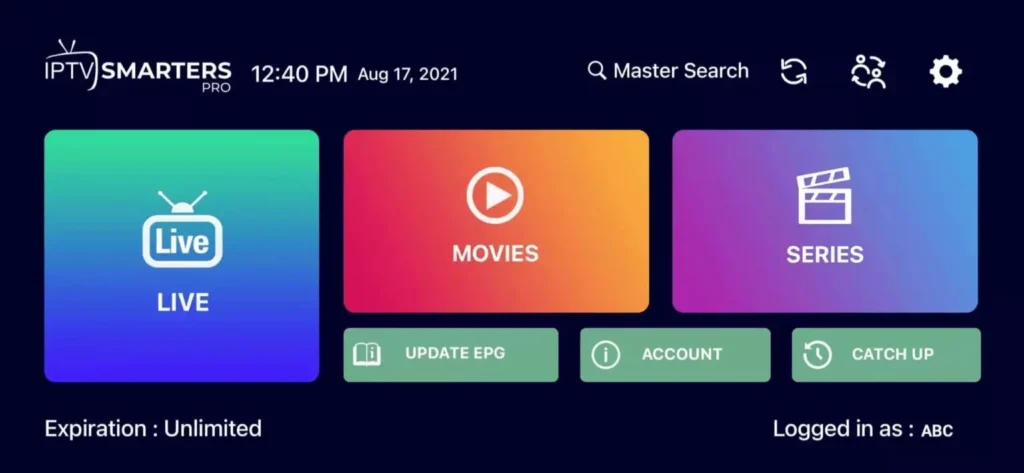
Step 6: Now you must select the channel group that you want to watch and proceed to the next section.
Step 7: Now you must click on the channel name and then double click on the small screen to turn into full screen as the final step.
Step 8: To add EPG no need to add any EPG url, Just click on “Install EPG”
Done
Instructions for setting up IPTV on Firestick/Fire TV, Android
- Install the Downloader App: You need the Downloader app to sideload the IPTV Smarters Pro APK file since it’s not available on Amazon’s app store.
- Enable Apps from Unknown Sources: Go to Settings > My Fire TV > Developer Options. Turn on “Apps from Unknown Sources” and “Install Unknown Apps” for the Downloader app.
Step-by-Step Installation Guide
- Open the Downloader App: On the Firestick home screen, navigate to the Apps icon. Open the Downloader app.
- Download IPTV Smarters Pro: In the Downloader app, enter the URL https://www.iptvsmarters.com/smarters.apk and click Go. Wait for the APK file to download.
- Install IPTV Smarters Pro:
- Once the download is complete, click Install.
- After the installation is finished, click Done.
- A prompt will appear asking you to delete the APK file to free up space. Click Delete twice to confirm.
Post-Installation Setup
- Launch IPTV Smarters Pro: Open the app from your Apps & Channels section.
- Accept Terms and Conditions: scroll down to the bottom and click Accept.
- Add Your IPTV Subscription: Click “Add New User” and choose your login method:
-M3U Playlist URL: Select “Load Playlist”, enter your M3U playlist URL, provide a name, and click “Add User”.
-Xtream Codes API: Select “Xtream Codes API”, input your credentials, and click “Add User”.
Additional Tips
-Use a VPN: For enhanced privacy and to bypass ISP blocks, use a reliable VPN service like ExpressVPN.
-Move App to Home Screen: For quick access, move the IPTV Smarters Pro icon to your Firestick’s home screen.
-Create Favorites List: Add frequently watched channels to your favorites for easy access.
-Check Internet Speeds: Ensure your internet speed is adequate for streaming to avoid buffering issues.
By following these steps, you should be able to install and set up IPTV Smarters Pro on your Amazon Firestick without any issues.
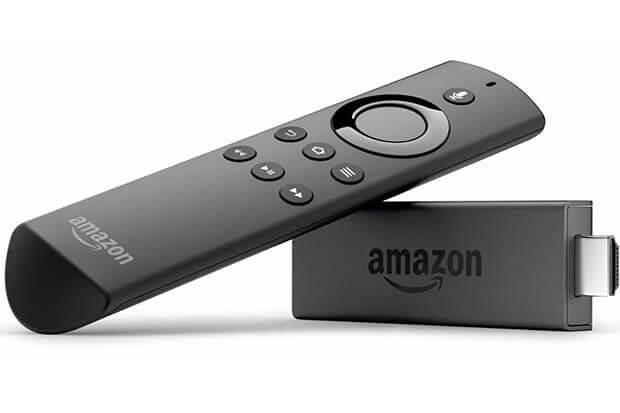
Prefer a video guide? 🎥 Watch the step-by-step tutorial below!
FIRESTICK VIDEO GUIDE